How Agencies and Consultants Audit HubSpot Workflows for Clients
A step-by-step look at mapping, scoring, and reporting on a client's automation before you touch anything.

How Agencies and Consultants Audit HubSpot Workflows for Clients
Quick answer: Auditing a client's HubSpot workflows means mapping every workflow and how it connects to the others through direct enrollment, list membership, and property changes, running a health check to flag stale, orphaned, and empty workflows, checking the downstream impact of any property before changing it, and packaging the findings into a deliverable the client can act on. Howly connects read-only through OAuth and runs all four steps from one canvas, typically inside 25 seconds for the map and about 15 seconds for the AI-assisted portion of the audit.
Why This Process Exists
A new engagement starts the same way almost every time. The portal has been running for years. Nobody currently on the account built most of the workflows. The only way to know what a change will touch is to open workflows one at a time and read them, which does not scale past a handful of automations and does not scale at all across a client roster.
The process below is the one agencies and consultants use to shortcut that: map first, score second, check impact third, report last. Each step answers a specific question a consultant needs answered before making a recommendation.
Step 1: Connect the Portal and Load the Full Workflow Map
The first thing to do in any new client portal is see everything at once, grouped by object type. Howly connects to HubSpot read-only through OAuth 2.0 and is listed as a featured app on the HubSpot Marketplace, so the client is granting view access, not write access, from the first click.
Once connected, the canvas loads every workflow in the portal in 10 to 25 seconds depending on portal size, organized by object: Contacts, Companies, Deals, Tickets, and any custom objects the client uses, including things like invoicing or quotes if those exist. One example portal walked through in the video had 48 contact workflows, 20 deal workflows, eight company workflows, plus ticket and lead workflows on top, for 83 total. Every portal is different because the map pulls directly from that account's API.
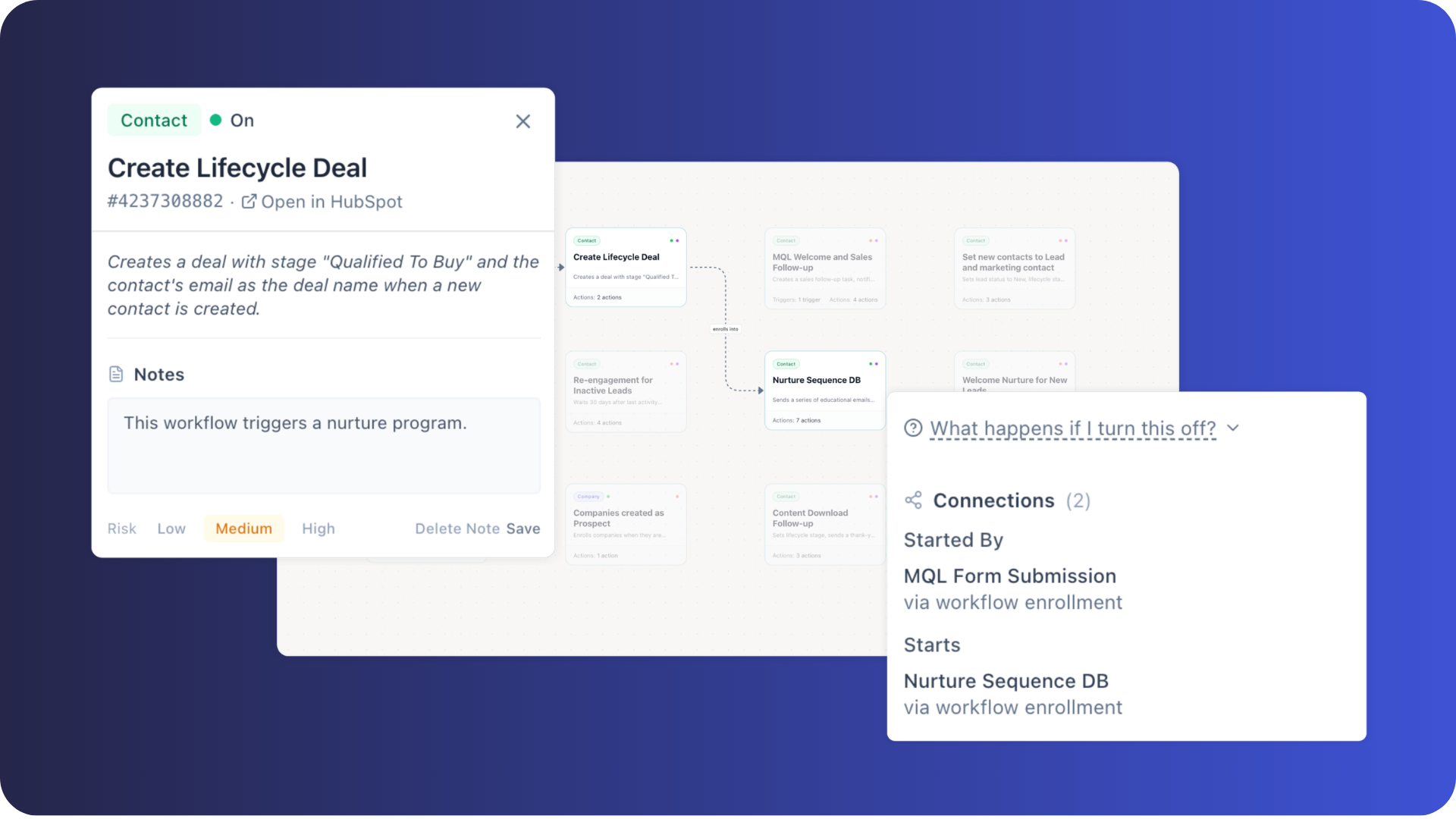
From here, a consultant can click into any single workflow and see its enrollment trigger and its actions in a sidebar, pulled directly from HubSpot, without leaving the map. Notes can be attached to individual workflows right on the canvas, flagged by risk level, so a first pass through an unfamiliar portal turns into a working document instead of a memory the consultant has to reconstruct later.
Step 2: Trace Direct Enrollment, List-Based, and Property-Based Connections
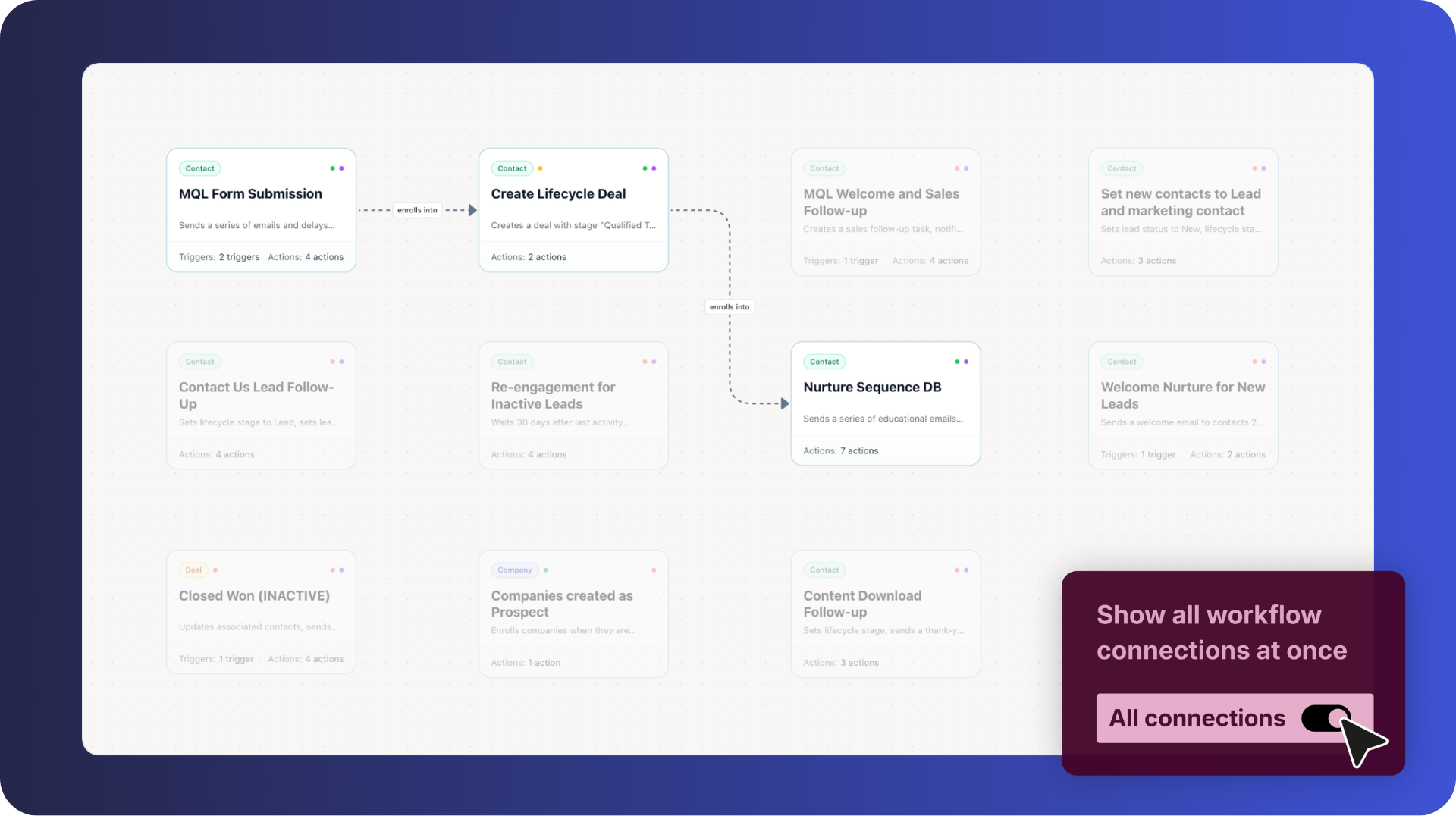
HubSpot does not show how workflows relate to each other. A workflow can enroll a contact into a second workflow directly, add a contact to a list that a separate workflow watches, or set a property that silently triggers a workflow somewhere else in the portal. None of that shows up by opening one workflow at a time in HubSpot's native interface.
Toggling all connections on at once turns the canvas into a full dependency map: every enrollment, every list-based trigger, every property-based trigger, drawn as lines between nodes. Active connections and paused or inactive ones are visually distinct, so a consultant can spot at a glance which parts of the automation are actually live. This view also surfaces circular dependencies, where two or more workflows enroll into each other in a loop, something that is close to impossible to catch by reading workflows individually.
A canvas layout that groups by upstream and downstream connections instead of by object type makes these loops and long enrollment chains easier to follow left to right. Either layout is useful; which one a consultant reaches for depends on whether the goal is inventorying by object or tracing a specific chain end to end.
Step 3: Run the Health Checker to Surface Structural Issues
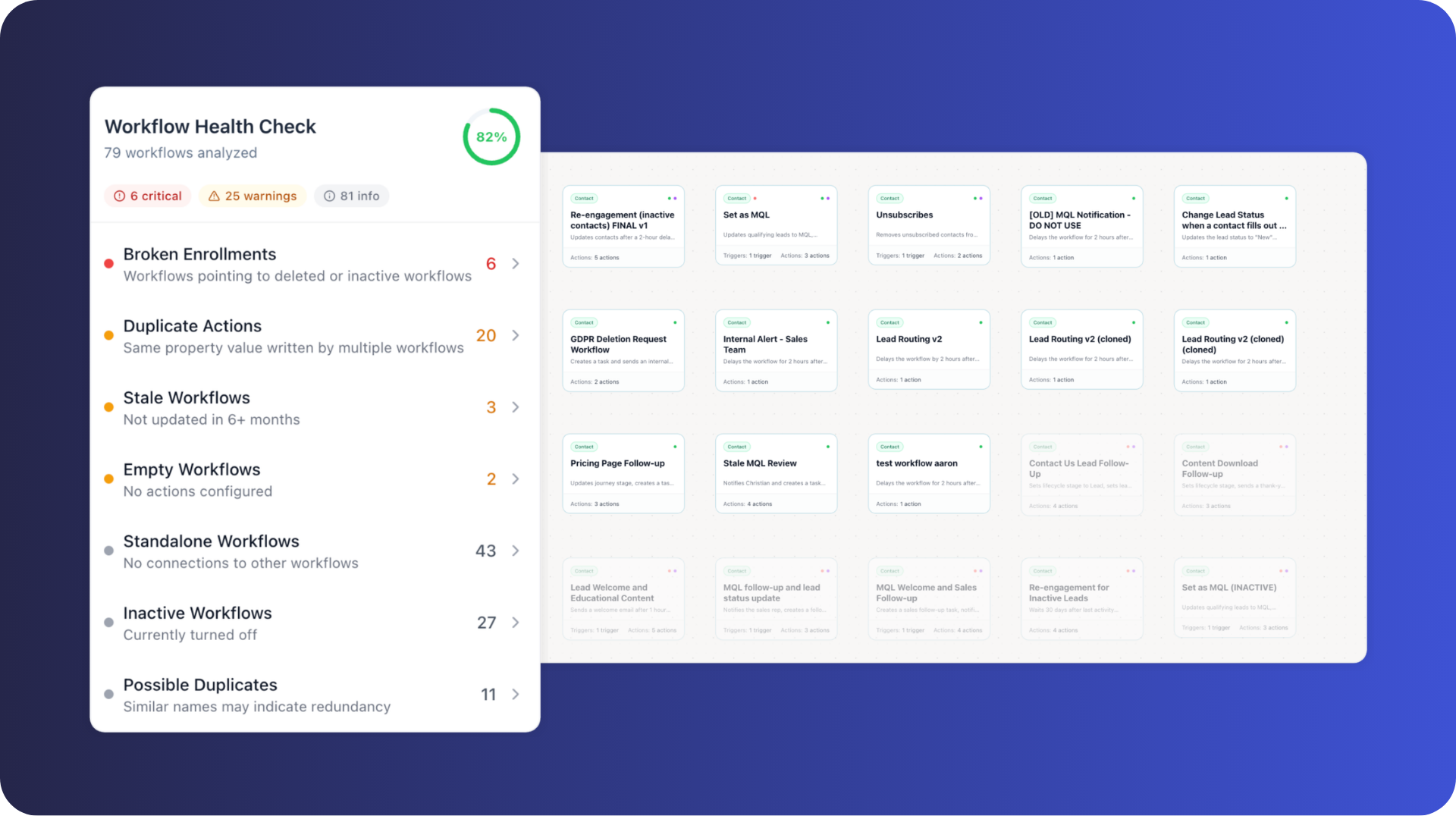
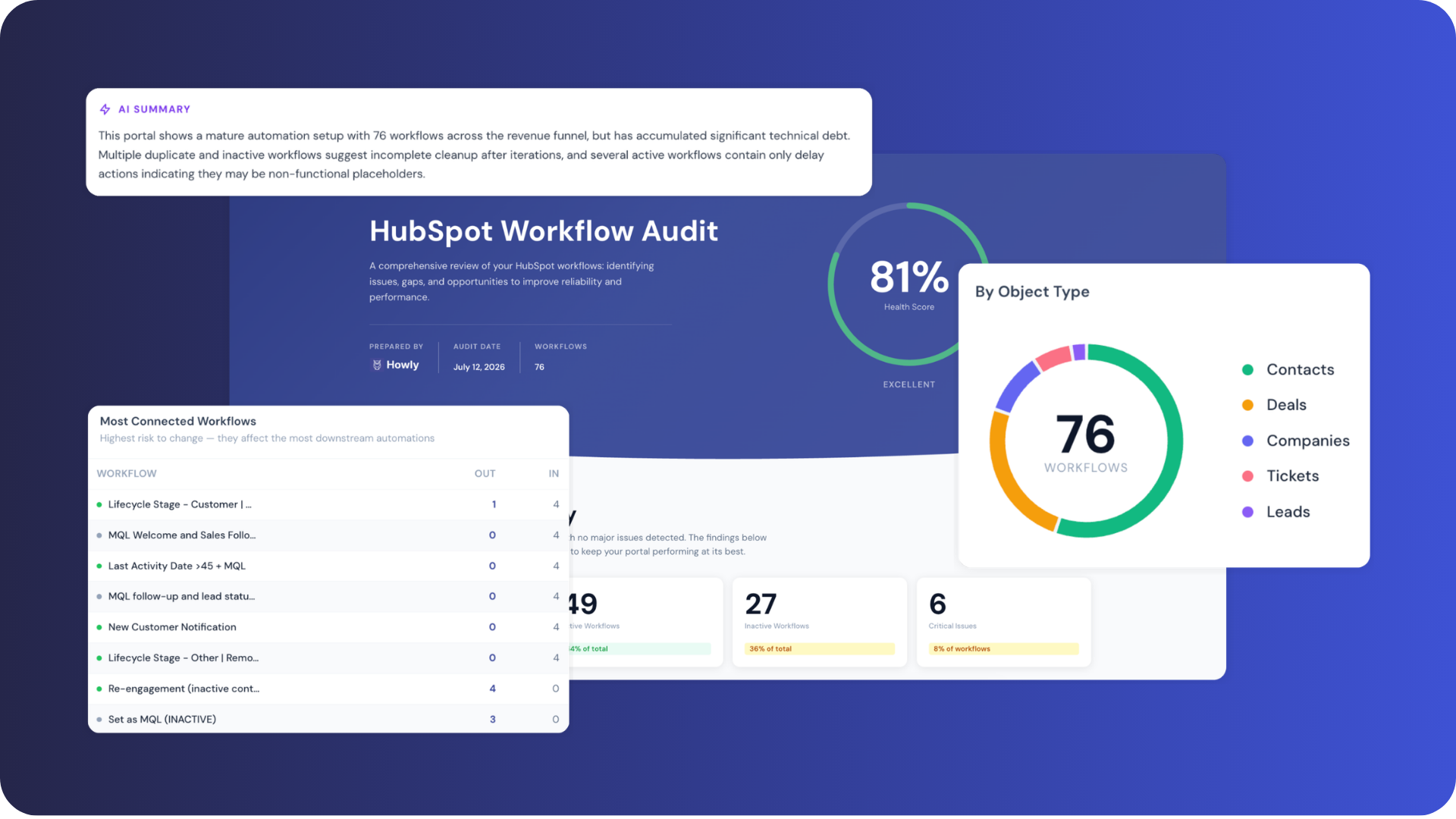
Once the map exists, the next question is which workflows actually need attention. The Health Checker gives the portal a score from 0 to 100, based on the percentage of workflows free of three structural issues: stale (not modified in six or more months, by last-modified date), orphaned (active, with no upstream trigger and no downstream dependency), and empty (no actions configured at all).
The same panel also surfaces separate issues worth a consultant's attention that do not factor into the score itself: broken or inactive enrollments, circular dependencies, and duplicate actions where more than one workflow writes to the same property. In the video walkthrough, one portal's health check turned up five broken enrollments, five circular dependencies, 37 standalone workflows, 12 duplicate property writes, and two completely empty workflows, each one a candidate for a note, a fix, or an archive decision.
Every flagged workflow links back to HubSpot directly, so the consultant can open it, confirm the issue, and either fix it on the spot or leave a note for client sign-off before touching anything.
Step 4: Check the Impact Before Changing Any Property
Before setting up a new nurture program or adding a deal-stage trigger, the question that matters is what else already depends on that property. The Impact Analyzer lists every property used across the portal's workflows and shows, for each one, which workflows trigger on it and which workflows write to it.
A property like lifecycle stage might show up in twenty workflows: six that trigger enrollment when it changes, and a separate set that set the value in the first place. Seeing both directions matters. A new automation built on the assumption that lifecycle stage only changes in one predictable place can otherwise collide with an existing workflow nobody remembered was there.
This is the step that turns "I think this change is safe" into "I checked what this change touches," which is the difference a client actually notices when something breaks and the consultant already has the answer for why it didn't.
Step 5: Generate a Branded Audit Report
The map, the health score, and the impact analysis are only useful to the client if they show up in something the client can read. Howly's audit report compiles all of it into one document: health score, most-used properties, flagged issues, workflow-by-workflow notes, and a naming and folder-structure review, exportable as a white-label PDF or HTML file for agencies presenting under their own brand.
The report scales to the audience. An executive summary works for a C-suite handoff. A full technical review with every finding and no AI commentary works for a hands-on team that wants to verify each item itself. A version with an AI-generated insights layer, powered by Claude, reads the portal's structure at a business-process level rather than just a technical one, catching things like duplicate lead-routing logic or an abandoned lead-scoring approach that a purely mechanical check would miss. That AI layer typically runs in about 15 seconds.
Any notes added while working through the canvas in Step 1 through Step 4 carry into the report automatically, under a documentation section, so the deliverable reflects the actual review rather than a generic template.
Step 6: Keep the Portal Current With the MCP Integration
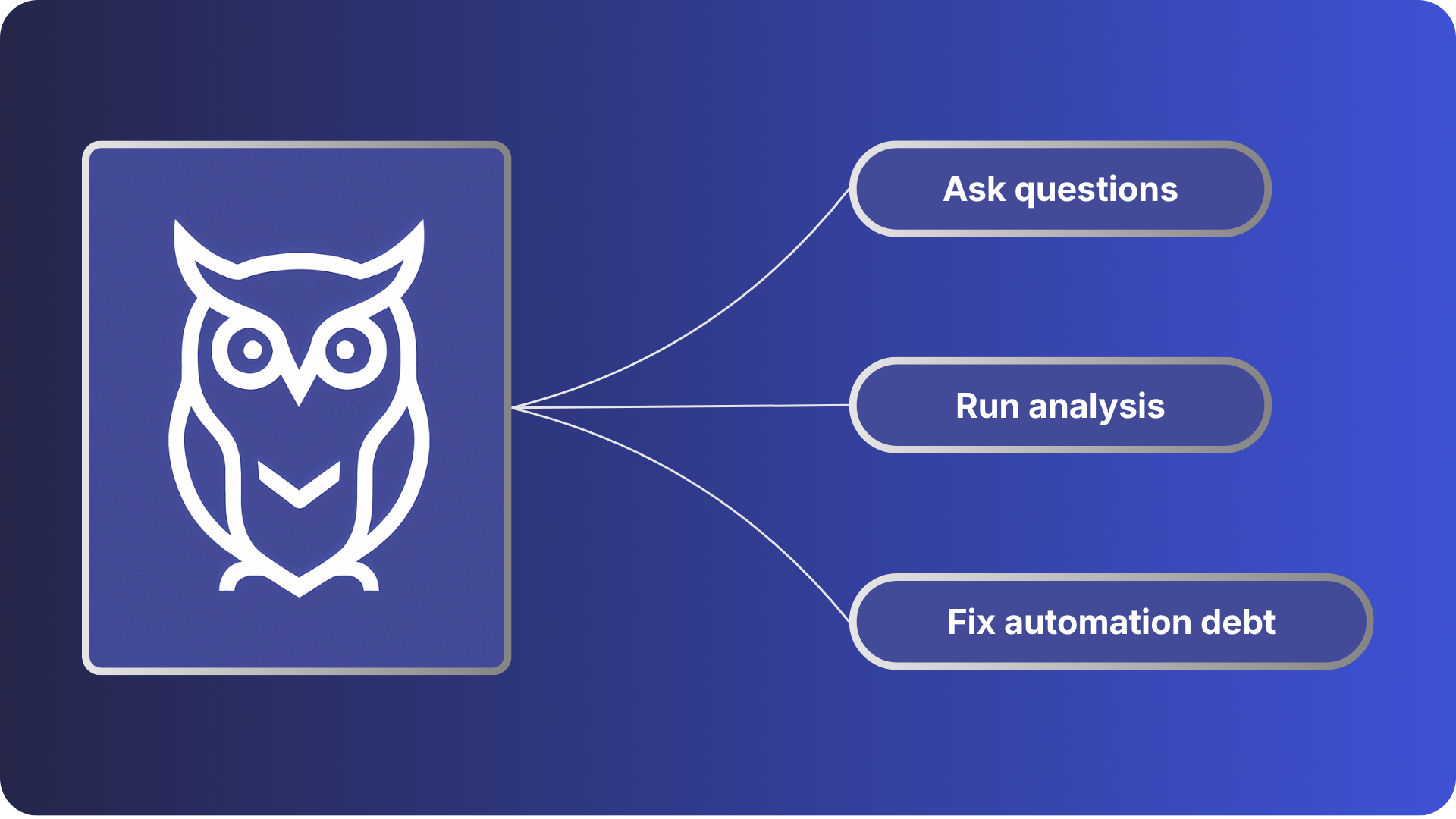
An audit is a snapshot. Portals keep changing after it ships. Howly's MCP integration with Claude Desktop lets a consultant ask, in plain language, what changed in a client's portal over the last three days, whether any new issues came from those changes, or for a prioritized quick-win list to bring into the next client call, without opening the canvas at all.
Because the connection is tied to the portal, switching between client accounts inside Howly carries the same conversation forward, so an agency managing several portals under one login can move between them without starting a new context each time. Agencies get unlimited client portal connections under a single account.
Key Takeaways
A full audit means four things in sequence: map the workflows and their connections, score the portal's structural health, check the impact of any property before changing it, and package the findings for the client.
The health score reflects only stale, orphaned, and empty workflows. Broken enrollments, circular dependencies, and duplicate property writes are flagged separately and don't move the score.
Property-based connections are the hardest to catch by reading workflows one at a time, and the most common source of a client asking why a contact suddenly changed stage.
A documented, branded report is what turns "it looks fine" into evidence the client can act on.
Frequently Asked Questions
How do HubSpot agencies audit a new client's workflows? Most agencies start by mapping every workflow in the portal and how it connects to the others, then run a structural health check to flag stale, orphaned, or empty workflows, check the impact of any property before changing it, and compile the findings into a client-facing report. Doing this by opening each workflow individually does not scale past a small portal, which is why most agencies use a dependency-mapping tool that connects read-only to the client's account.
What is the difference between direct enrollment, list-based, and property-based workflow connections? Direct enrollment happens when one workflow's action explicitly enrolls a record into a second workflow. List-based connections happen when a workflow adds a record to a list that a separate workflow uses as its enrollment trigger. Property-based connections happen when a workflow changes a property value that silently triggers a different workflow watching that same property. The first is usually visible on inspection; the third is the one that gets missed most often because nothing points to it directly.
What does a HubSpot workflow health score actually measure? A workflow health score measures the percentage of a portal's workflows that are free of three specific structural issues: stale (not modified in six or more months), orphaned (active with no upstream trigger and no downstream dependency), and empty (no actions configured). Other issues like broken enrollments, circular dependencies, and duplicate property writes are useful to review but are reported separately and are not factored into the score.
Why does an Impact Analyzer matter before changing a HubSpot property? A property used across a portal often triggers some workflows and is written to by others, and those two groups are rarely the same workflows. An Impact Analyzer shows both directions for a given property before a change is made, which prevents a new automation from colliding with an existing one that nobody remembered was reading or writing the same field.
Can an AI review a HubSpot portal's workflow structure, not just list technical errors? Yes. An AI-assisted layer on top of a structural audit can read patterns across workflows, such as duplicate lead-routing logic built at different times or an abandoned lead-scoring workflow left inactive, that a purely mechanical check would report as separate, unrelated flags rather than one underlying process problem.
Can Claude interact directly with a HubSpot portal during an ongoing audit? Through an MCP integration, Claude can be asked what changed in a connected HubSpot portal over a given window, whether recent changes introduced new issues, or for a prioritized list of fixes, without a consultant manually reopening the workflow canvas each time. Access remains read-only; the integration surfaces information, it does not make changes in the portal.
Summary
Auditing a client's HubSpot workflows comes down to four steps done in order: map the workflows and their connections, score the portal's structural health, check what a property change would actually touch, and turn all of it into a report the client can act on. Skipping the mapping step is what leads to broken client relationships when a "safe" change turns out not to be. Skipping the report is what leaves the work invisible to the client who is paying for it.
Agencies managing this across several client portals cannot do it by opening workflows one at a time. Howly connects read-only through HubSpot's OAuth, loads a full dependency map in 10 to 25 seconds, runs a health check and an AI-assisted audit in about 15 seconds, and exports a branded report agencies can hand to clients under their own name. A 7-day free trial is available with no credit card required at howly.io; connected accounts run the live audit at app.howly.io.
For a deeper look at building this process into a repeatable agency offering, see the agency guide to workflow audits and the complete guide to auditing HubSpot workflows. For what the finished deliverable looks like section by section, see how a HubSpot workflow audit report is structured. One agency cut a full audit from 15 hours to 90 minutes using this process; see how MAVN Marketing cut audit time.
Howly is a read-only HubSpot workflow mapping and audit tool. It maps workflow connections, flags structural issues, and shows the impact of property changes before you make them. Used by RevOps teams and HubSpot agencies managing complex portals at scale.
About the author
- Founder of Howly.io - I help HubSpot Admins and Agencies move from manual spreadsheets to automated workflow mapping. Building the visibility layer for the modern RevOps stack.
Comments
Join the discussionNo comments yet. Be the first to comment.
HubSpot Workflow Guides
Practical guides for auditing, cleaning up, mapping, and managing HubSpot workflows. Everything you need to work confidently inside a complex portal.